
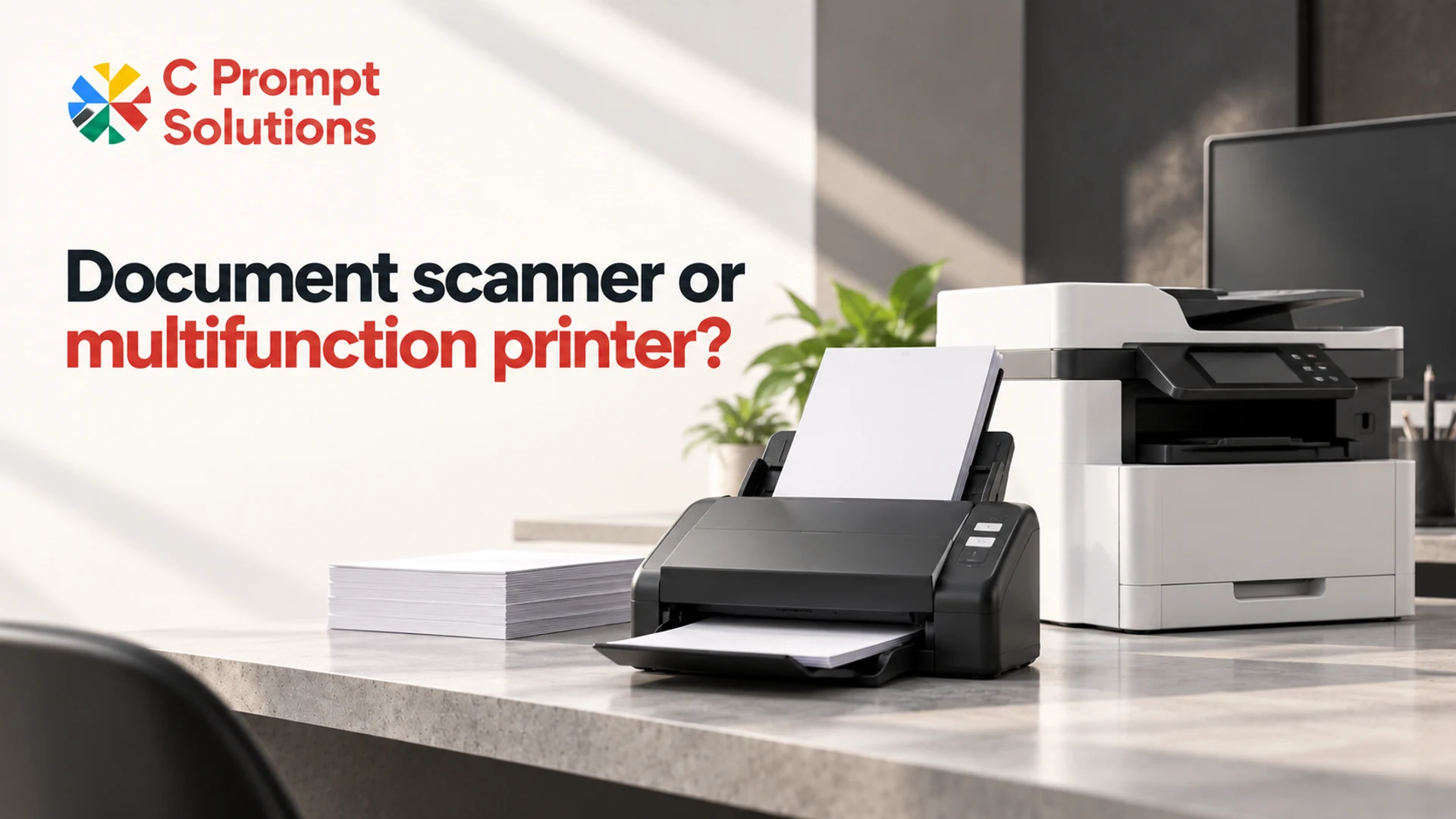
Choose a document scanner or multifunction printer from the capture job: the documents that arrive together, the way they can be fed, the required sides and the destination application. A suitable MFP can handle scanning successfully. A dedicated scanner becomes worth evaluating when recurring batches need their own operator position, handling features or capture workflow.
The useful comparison is completed, checked files from your actual document mix. A category label or headline speed cannot tell you whether an operator can prepare, capture, check and file the batch within the working window. Keep printed-page volumes and consumables in the office printer requirement guide; this comparison addresses the incoming document process.
Describe the batch and its destination
Start with one recurring task, such as an administrative records batch. Record physical sheets, required front/back images, document sizes, condition and arrival pattern. Separate loose paper from bound, fragile, stapled or irregular originals. Identify what must be preserved in colour and which document groups must remain together.
Then describe the finished job: one file per case or per batch, required naming, format, destination, access permissions and review owner. Ask who separates the documents, checks missing pages and corrects errors. These steps belong in the acceptance test even when they are performed manually. Do not assume an equipment quote includes document preparation, indexing or integration.
Check the exact feeder and duplex features
An automatic document feeder, or ADF, handles a permitted stack of originals. Its capacity is a loading specification, not the number of completed files an operator will produce. Check permitted paper size, weight, condition and feed method. Do not put unsuitable originals through a feeder just to keep a test moving; agree a separate capture method with the document owner.
Duplex printing and duplex scanning are separate specifications. Confirm whether the proposed model captures both sides automatically, how it feeds them and which settings apply. For example, Brother’s MFC-L8900CDW specifications list automatic two-sided scanning from the ADF. That manufacturer example shows why an MFP should not be dismissed as inherently single-sided. It is not a claim that this regional model is offered by C Prompt Solutions.
Read speed claims with their test conditions
Pages per minute, or ppm, and images per minute, or ipm, use different counting units. A two-sided physical sheet can produce two images. Compare the same paper orientation, resolution, colour mode and output task; do not compare print speed with scan speed or equate a feeder rate with accepted filing throughput.
As a manufacturer example, Ricoh’s fi-8170 specification lists 70 ppm simplex and 140 ipm duplex for A4 portrait at 200/300 dpi. Its footnotes specify JPEG compression for colour/grayscale and TIFF CCITT Group 4 for monochrome. The OEM test used a Core i3-10105, 8 GB RAM, SSD and Windows 10; these are measurement conditions, not an operating-system recommendation. Speeds can vary with the system environment. These are conditional OEM figures, not office pilot results or confirmed rental availability.
Time preparation, feeding, exception handling, file separation, naming, checking and destination acceptance. Record the entire elapsed period and the completed files, alongside any feed-only measurement. A faster feed stage may not shorten the process if operators spend more time resolving mixed originals or manually filing the output.
Use a workflow decision matrix
Use the same acceptance criteria for both categories. An MFP that passes the task is a valid outcome; a dedicated scanner that fails an application or handling requirement is not. Mark unknown capabilities for confirmation against the exact proposed model and its documentation.
| Office requirement | Comparison to make | Decision evidence |
|---|---|---|
| Small batches alongside existing print/copy use | Test the available MFP’s actual scan workflow | Required sides, output and sharing remain practical |
| Recurring batches interrupt a shared device | Evaluate a separate capture position | Queue and operator task pass the working-window test |
| Mixed sizes or difficult originals | Compare exact permitted media and feed modes | Required originals handled without unapproved workarounds |
| Bound or feeder-ineligible documents | Check a suitable glass/other approved capture method | Document owner approves handling and output |
| Application-led capture | Test the exact model/driver/application combination | Approved files reach the real destination correctly |
| Searchable text or automated separation required | Specify software, rights and validation separately | Do not infer these from “scanner” or “MFP” labels |
Copy the capture evaluation worksheet
Complete a record before the demonstration and use it for every candidate. Keep separate intake and result rows for the candidate MFP and scanner. Leave measured values empty until a test has actually been run.
| Field | What to record | Review owner |
|---|---|---|
| Batch | Sheets, required images, case groups, frequency and deadline | Process owner |
| Originals | Size, weight, sides, condition and exception handling | Document owner |
| Candidate | Exact model, feeder, duplex method and connection | IT reviewer |
| Software | OS/build, driver, capture application/version and licence | IT and application owner |
| Output | Resolution, colour, format, naming and destination | Process/application owner |
| Pilot evidence | Prep/feed/rework/check/file times; missed sides and exceptions | Test operator |
| Acceptance | Expected files/images, quality checks and named approver | Process owner and IT |
Agree the test documents and access arrangements before sharing any records. Where protected material is involved, an approved representative sample can describe the challenge without distributing live customer information. Keep the original sequence and an expected file/image list so a missing back page cannot disappear into a seemingly successful PDF.
Test the complete application path
Check the precise operating-system release, connection type, driver and capture application required by the business. Record TWAIN, WIA or another interface only where the application and device documentation support it. A network connection or a working printer driver does not establish that the required scanning function is ready.
Microsoft’s Windows scanner guidance explains checking a multifunction device’s scanning capability as well as its printer entry. Use a successful scan as an initial check, then test the required output and destination in the actual application. Have customer IT approve installation and access; have the application owner approve file handling. OCR, searchable output and automation require their own supported software, licence and accuracy checks.
Work through an illustrative batch
Hypothetical requirement, not a benchmark: An administration team receives 12 case groups of 10 physical sheets each: 120 sheets in total. Assume 80 sheets have required content on one side and 40 on both sides. The expected capture is 160 content images, organised into 12 correctly named case files. The manifest should state each case’s expected image count before scanning.
Assume the process owner sets a 30-minute completion window. That is an illustrative business requirement, not a scanner recommendation. Include preparation, approved feeding, exception handling, naming, checking and destination acceptance when testing against that window. Enter measured times separately for the candidate MFP and scanner; this example supplies no test results.
Check every expected side and case boundary, legibility, orientation and destination permissions. If a candidate misses a required back page, mixes cases or cannot produce the approved format, record the failure rather than counting the batch as complete. Change a setting or workflow only with the reviewer’s agreement, then repeat the relevant test under recorded conditions.
Frequently asked questions
Does automatic duplex printing mean automatic duplex scanning?
No. They are separate capabilities. Check the scanner/ADF specification for the exact proposed model, including supported media and settings. Ask the operator to demonstrate a two-sided original through the intended capture application instead of relying on a print specification.
Is ADF capacity the same as daily scanning capacity?
No. ADF capacity describes a permitted input stack under stated conditions. It does not include preparation, reloading, checking or filing. Review any manufacturer daily-volume guidance with its limitations, then validate the actual batch workflow rather than deriving an office output promise from the tray size.
Will either device automatically create searchable PDFs?
Do not assume so. Searchable text depends on supported capture or OCR software, applicable rights, settings and document quality. Specify the required output and test it in the intended application. Neither the device category nor a rental enquiry confirms an OCR or automation service.
Who should approve the final scanner or MFP choice?
The process owner should approve the completed document task; IT should approve the model, connection, driver and access arrangements. The application owner confirms output compatibility and software rights. Procurement then confirms the exact offered equipment and agreed duties against that accepted requirement.